

Cart
0
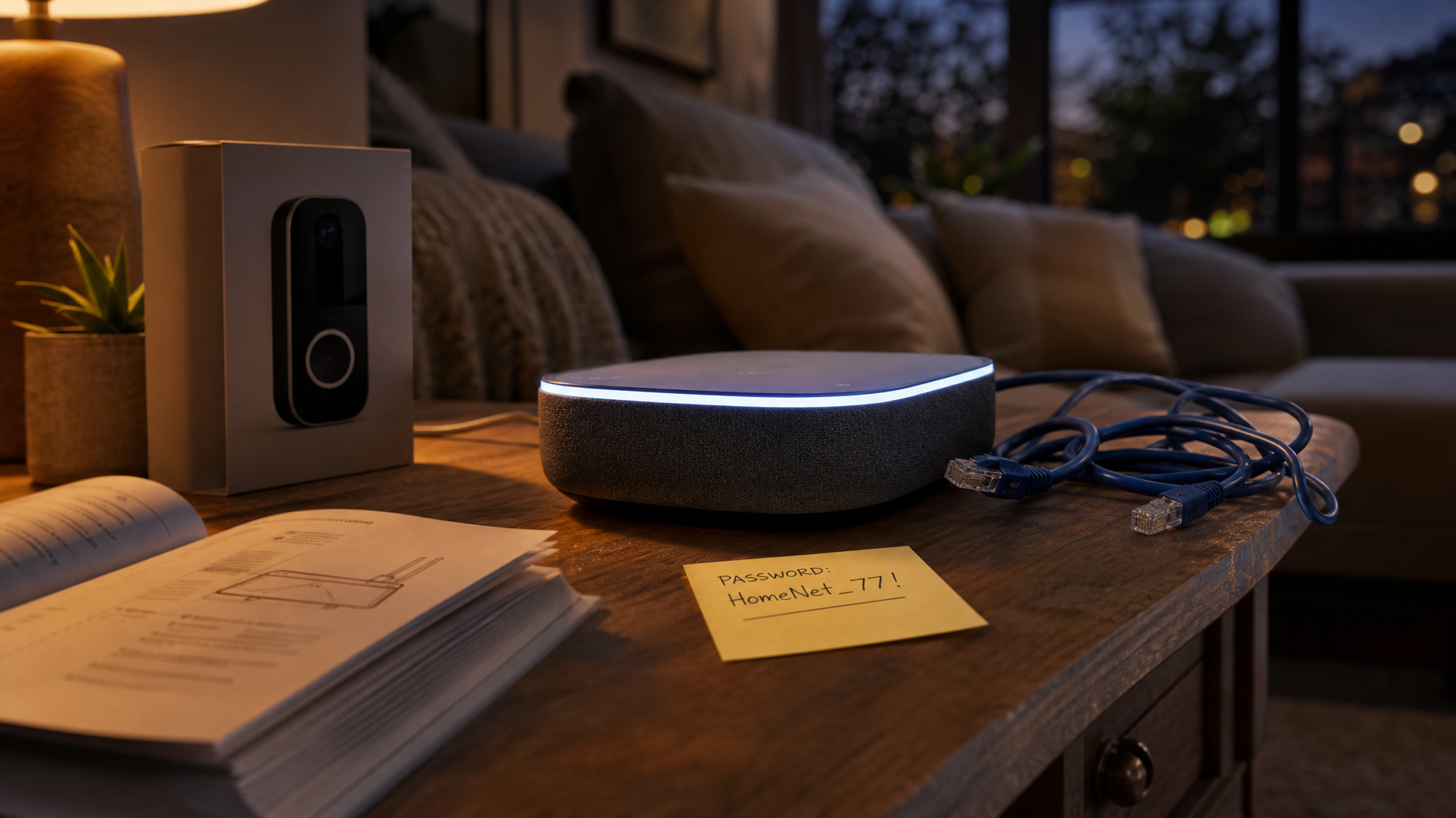
The hesitation is real. You want the convenience of a smart doorbell or a voice-controlled thermostat, but somewhere in the back of your mind sits the image of a stranger talking through your baby monitor. That fear isn't irrational — there have been genuine incidents — but it has also kept a lot of people from a category where most of the real risks are entirely avoidable if you know what to check before you buy.
The problem is that most product listings don't make security easy to evaluate. You'll see specs for resolution, compatibility, and battery life, but the stuff that actually determines how exposed your home network is? Buried in a manual, a privacy policy, or a support page most shoppers never open.
This guide covers the specific things worth looking at — not a general lecture on cybersecurity, but the concrete checklist you can run through on any smart home device before clicking "Add to Cart."
Local Processing vs. Cloud Processing: The Biggest Distinction Nobody Talks About
Every smart home device needs to process data somewhere. The question is: does it do that on the device itself, or does it send data to a company's remote servers first?
Cloud-dependent devices route your commands, footage, or sensor readings through an external server before anything happens. That's not automatically bad — it enables remote access and powerful features — but it means your data is traveling across the internet constantly, and you're trusting that company's security practices. If their servers go down, your device may stop working entirely. If they get breached, your data could be exposed.
Local processing keeps data on your home network. A security camera that stores footage to a local SD card or NAS drive, a smart lock that processes commands on-device, or a hub that handles automations without phoning home — these reduce your exposure significantly. You lose some remote-access convenience, but you gain independence from a company's server infrastructure and data policies.
Before buying, search the product name plus "local processing" or "works without internet." It's not always front-and-center in the listing, but it's almost always documented somewhere.
Default Credentials: The Oldest Problem in Smart Home Security
A surprising number of smart home devices — particularly older or budget models — ship with default usernames and passwords like "admin/admin" or "user/1234." These are publicly documented. Anyone who knows the device model can look up the default login and try it.
The fix sounds simple: change the password on first setup. But the real question to ask before you buy is whether the device even lets you. Some devices require you to create a unique password during setup. Others make it optional. A few older models don't expose a login interface at all, which means there's no way to lock down the admin panel.
Look for listings or reviews that mention "forced password change on setup" or check the manufacturer's setup guide. If a device doesn't prompt you to set a unique credential during first-time configuration, that's a red flag worth weighing against the price.
Firmware Update History: How to Spot a Device That Won't Be Abandoned
Security vulnerabilities get discovered after products ship. The difference between a device that stays secure over time and one that becomes a liability is whether the manufacturer actually pushes firmware updates to patch those vulnerabilities — and for how long.
Before buying, check two things. First, does the device support over-the-air (OTA) firmware updates, ideally automatic ones? Manual update processes get skipped. Second, look at the manufacturer's support page or community forums and check the update history. A product that received its last firmware update two years ago and still has open issues reported in its reviews is a device the company has quietly moved on from.
This is especially important for security cameras, smart locks, and anything connected to your home's entry points. The IEEE and security researchers consistently flag unsupported firmware as one of the leading causes of smart home device compromise — not sophisticated hacks, just unpatched known vulnerabilities sitting open indefinitely.
What Privacy Settings Actually Do (and What They Don't)
Privacy settings in a smart home app can feel like a meaningful control — toggle off data sharing, disable personalization, done. The reality is more nuanced.
Most privacy settings control what the company does with your data for advertising or product improvement. They don't necessarily stop the device from sending data to the cloud in the first place — that's often a core function, not an optional feature. What they typically do control:
- Voice history storage — whether recordings are saved and reviewable by the company
- Third-party data sharing — whether your usage data gets passed to advertising partners
- Personalization features — whether the device builds a behavioral profile to improve recommendations
What they usually don't control: the basic transmission of device status, commands, and sensor data to the manufacturer's servers. That's the price of cloud-based functionality.
Read the privacy policy's data retention section before buying — specifically, how long they store your data and what happens to it if you delete your account or the company is acquired. It's not exciting reading, but it's the most honest picture of what you're agreeing to.
Network Segmentation: The Setup Step That Matters More Than the Device Itself
Here's something most security guides skip: the single most effective thing you can do for smart home security has nothing to do with which device you buy. It's how you set up your home network.
Most modern routers let you create a separate guest network or IoT VLAN — a walled-off segment of your Wi-Fi that smart devices can connect to without having access to your main network where your laptop, phone, and sensitive files live. Even if a smart device is compromised, it can't reach anything important because it's isolated.
If your router supports it (and most mid-range routers sold in the last few years do), this one step does more for your overall security posture than any individual device feature. Set it up once, connect all your smart home devices to it, and your main network stays clean regardless of what any single gadget does.
The Practical Checklist
Run through these five questions on any smart home device before you buy:
- Does it support local processing, or is it entirely cloud-dependent? Know which you're getting and decide if the trade-off works for you.
- Does setup require a unique password, or does it ship with a default credential? Devices that force a password change on first use are meaningfully safer out of the box.
- When was the last firmware update, and does it update automatically? Check the manufacturer's support page, not just the listing.
- What does the privacy policy say about data retention and third-party sharing? Skim the retention section specifically — it's usually short and tells you a lot.
- Can you put this device on a separate network segment? If your router supports it, plan to do this regardless of how secure the device seems.
None of this requires a background in cybersecurity. It's just knowing where to look — and most of the information is publicly available before you spend a dollar.
If you're ready to start building out your setup, browse Electroeshop's full catalog — including alarm systems and current deals — to find smart home and security devices that fit your home and your standards.
Frequently Asked Questions
Are smart home devices safe to use on a shared or apartment Wi-Fi network?
Shared networks are riskier because you don't control who else is on them or what security practices they follow. If you're on a network you don't manage, prioritize devices that use local processing and strong encryption, and avoid putting anything sensitive — like a smart lock or security camera — on a network you share with strangers.
How do I know if a smart home device has been compromised?
Common signs include unexpected behavior (the device acting on its own, lights switching without a command), unusually high data usage on your router's traffic log, or the device's app showing login activity you don't recognize. Regularly checking your router's connected device list and enabling login notifications in the device's app are good habits for catching issues early.
Does a higher price mean a smarter home device is more secure?
Not automatically. Price correlates more with features and build quality than with security practices. Some budget devices have solid security because the manufacturer invested in it; some premium devices have poor firmware update cadences. The checklist in this post — update history, local vs. cloud, default credentials — is more reliable than price as a security signal.
What's the difference between a security camera that stores locally vs. one that uses cloud storage?
A locally storing camera saves footage to an SD card or a network-attached drive in your home — no subscription required, and your footage never leaves your network. A cloud-storage camera sends footage to the manufacturer's servers, which enables remote viewing from anywhere but means your video is on someone else's infrastructure. Many cameras now offer both options, letting you choose based on your comfort level and use case.


