

Cart
0


Lenovo Thinkstation P310 Tower 30At000Fus - Intel Xeon E3-1245 V5 Processor, 8Gb Ram, 1Tb 7.2K Hdd, Windows 7 Professional
Free Standard Shipping Across USA
Vendor: Lenovo
Type: Desktop Towers
Sku: WBCOMB01ATUQDJW
Availability: Sold Out
Couldn't load pickup availability
Guarantee safe checkout

Sold by Electroeshop, an authorized reseller.
Returns accepted within 30 days | support@electroeshop.com
Shipping Information
- Free Standard Shipping — United States only
- Processing Time: 3–5 business days
- Estimated Delivery: 6–10 business days after dispatch
- Double-boxed, fully insured & discreetly packaged
- Tracking number sent via email once dispatched
Returns & Refund
Returns accepted within 30 days of delivery.
Damaged or Defective Item
Free return shipping + replacement or full refund
Wrong Item Received
Free return shipping + replacement or full refund
Change of Mind
Return shipping at customer's expense · 25% restocking fee applies
All returns require a Return Authorization (RA) number before sending.
View Full Return & Refund Policy
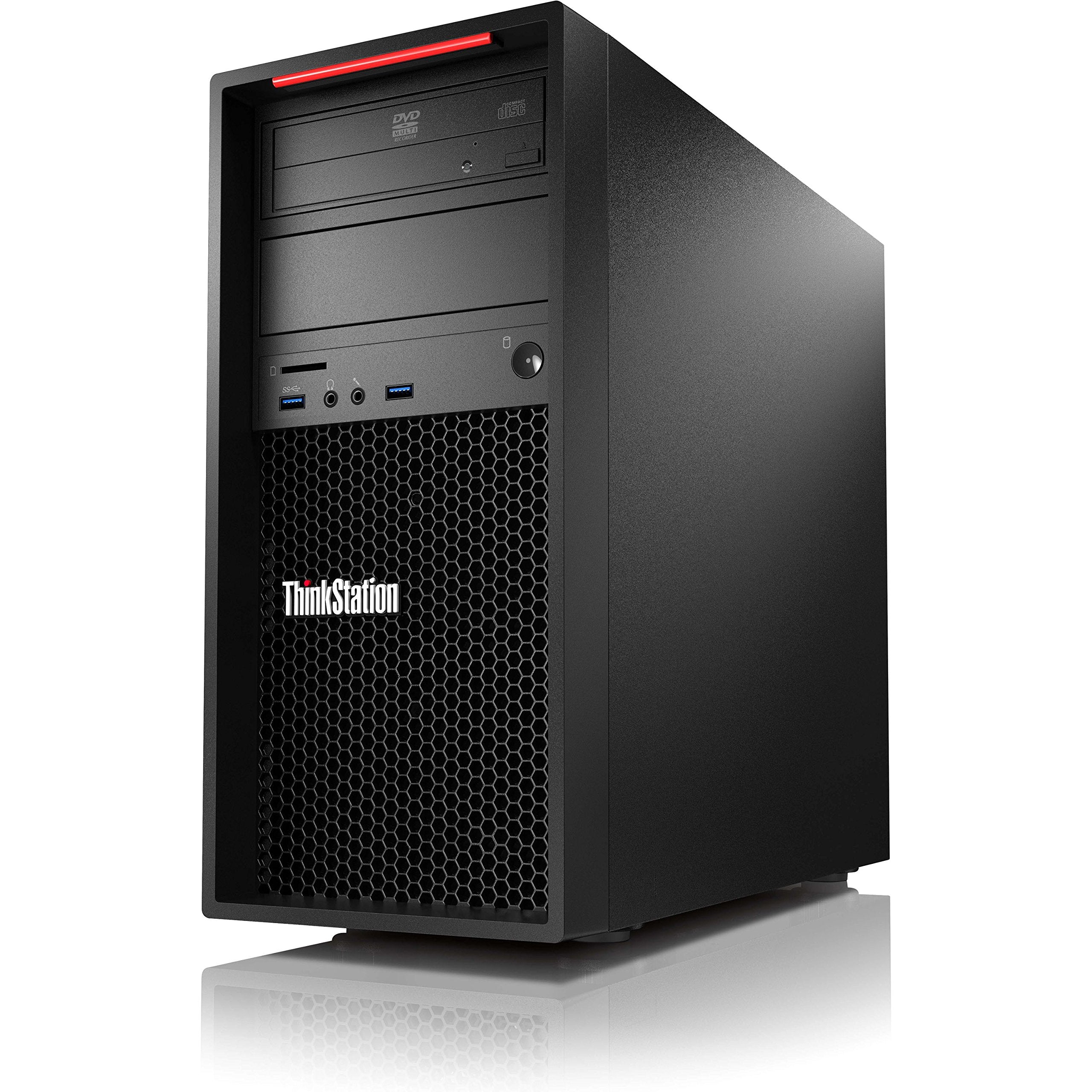
Lenovo Thinkstation P310 Tower 30At000Fus - Intel Xeon E3-1245 V5 Processor, 8Gb Ram, 1Tb 7.2K Hdd, Windows 7 Professional
$548.36

Frequently Asked Questions
- Q: What is the processor in the Lenovo ThinkStation P310? A: The Lenovo ThinkStation P310 features an Intel Xeon E3-1245 v5 processor. This quad-core processor operates at a base frequency of three point five gigahertz and can boost up to three point nine gigahertz.
- Q: How much RAM does the Lenovo ThinkStation P310 have? A: The system comes with eight gigabytes of RAM. This is ideal for multitasking and running demanding applications efficiently.
- Q: What is the storage capacity of the Lenovo ThinkStation P310? A: The Lenovo ThinkStation P310 includes a one terabyte hard disk drive. This drive operates at seventy-two hundred revolutions per minute, providing ample storage for files and applications.
- Q: What dimensions does the Lenovo ThinkStation P310 have? A: The dimensions of the Lenovo ThinkStation P310 are six point eight nine inches in length, sixteen point seven seven inches in width, and fourteen point eight inches in height. This compact design allows for easy placement in various workspaces.
- Q: What operating system is pre-installed on the Lenovo ThinkStation P310? A: The Lenovo ThinkStation P310 comes pre-installed with Windows seven Professional. It also supports a downgrade from Windows ten Professional.
- Q: What graphics capabilities does the Lenovo ThinkStation P310 offer? A: The workstation is equipped with Intel HD Graphics P530. This integrated graphics solution is suitable for everyday tasks and light graphical applications.
- Q: How do I install additional RAM in the Lenovo ThinkStation P310? A: To install additional RAM, power off the system and disconnect it from the power source. Open the chassis, locate the RAM slots, and insert the new modules firmly. Close the chassis and power on the system.
- Q: Can the Lenovo ThinkStation P310 handle gaming? A: While the Lenovo ThinkStation P310 can run some games, it is primarily designed for professional applications. Its integrated graphics may limit performance on modern gaming titles.
- Q: Is the Lenovo ThinkStation P310 suitable for video editing? A: Yes, the Lenovo ThinkStation P310 can be used for video editing. Its Intel Xeon processor and ample RAM make it capable of handling editing software.
- Q: How do I clean the Lenovo ThinkStation P310? A: To clean the Lenovo ThinkStation P310, turn off the system and unplug it. Use a soft, dry cloth to wipe the exterior surfaces and ensure the vents are free of dust.
- Q: What should I do if the Lenovo ThinkStation P310 won't power on? A: If the Lenovo ThinkStation P310 won't power on, check the power connection and ensure the power supply is functioning. If problems persist, consult Lenovo support for further assistance.
- Q: Does the Lenovo ThinkStation P310 come with a warranty? A: Yes, the Lenovo ThinkStation P310 typically comes with a standard warranty. Warranty details can vary, so check with the retailer or Lenovo for specific terms.
- Q: What ports are available on the Lenovo ThinkStation P310? A: The Lenovo ThinkStation P310 features multiple ports including two USB three point zero ports and two USB two point zero ports on the rear, along with VGA, DisplayPort, and Ethernet.
- Q: Is the Lenovo ThinkStation P310 upgradeable? A: Yes, the Lenovo ThinkStation P310 is upgradeable. You can add more RAM, storage, and even upgrade certain components like the graphics card.
- Q: What is the power supply rating for the Lenovo ThinkStation P310? A: The Lenovo ThinkStation P310 is equipped with a two hundred fifty watt bronze power supply. This ensures efficient power delivery for the components.